Edit Python File
Create New
Open the CukeTest client, click on the New File button  at the top right corner, and select Python from the dropdown list to create a new Python file.
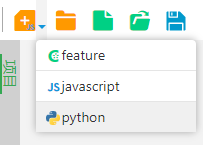
Edit
In the newly created Python file, write the following code:
print("hello CukeTest")Click on the toolbar to switch to the Script Column/Ctrl+Shift+R button  , and switch to the script column.
CukeTest does not currently support Python's code completion. You can enable this feature by configuring the CukeTest Python interpreter in VSCode. Here's how:
- Click on the interpreter version in the bottom left corner of VSCode, or press
Ctrl+Shift+Pto open the command palette, then typePython: Select Interpreter.- Choose the
Enter interpreter pathoption, then browse to the Python interpreter under the CukeTest installation directory. For example: "C:\Program Files\LeanPro\CukeTest\pyapi\python.exe".After completing the above settings, you will be able to enjoy the code completion feature of the CukeTest built-in library in VSCode.
Save
Press Ctrl+S or select File - Save to save the file. Choose a file path, enter a file name, and click Save to save the file.
Run
Click on the Run Script button  , and the Output panel will pop up, displaying the print results.